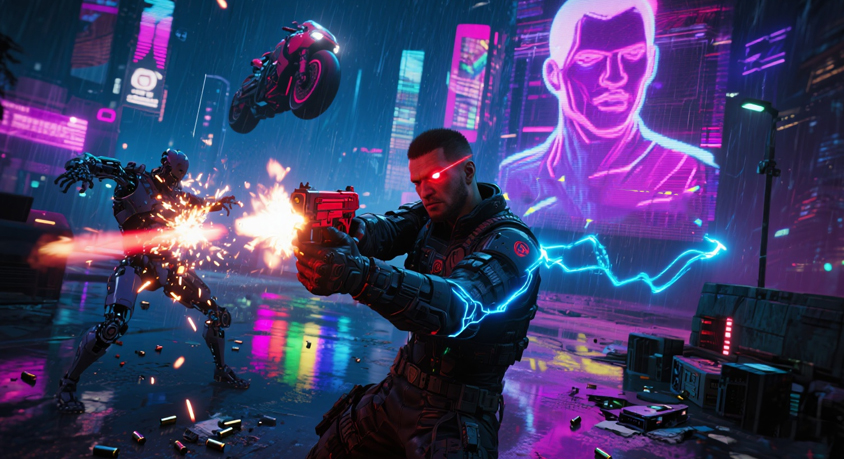
I sat there staring at my screen, Night City’s new Dogtown district glowing with neon rain—except it was stuttering like a TikTok video on bad WiFi. My frame rate hovered at 22, and every time I tried to shoot a gang member, the screen froze long enough for them to hit me first. “This is garbage,” I groaned, texting my friend Javi—who’s basically a Cyberpunk settings wizard. He showed up 20 minutes later, plopped down, and said, “You’re running ray tracing on a mid-tier GPU like it’s a PS5 Pro. No wonder it’s choking.” 10 minutes of tweaking later? I was cruising down a neon highway at 60 FPS, the rain reflecting off my car like it was supposed to—no more freezes, no more squinting at a laggy screen. The secret to Phantom Liberty’s graphics? It’s not about maxing everything out—it’s about tricking the game into looking good and running smoothly. Let’s break it down like we’re hacking a Corp terminal: no jargon, just what actually works.
First up: Ray tracing—the “neon eye candy” that eats frames for breakfast. I wanted that movie-like glow, so I cranked ray tracing to Ultra… and my GPU screamed. Javi laughed and turned it down to Low (or Off, if your PC’s an older model). “Ray tracing is Cyberpunk’s flex, but Low still gives you that rain reflection and neon bounce—just without draining your FPS,” he said. Sure, Ultra makes the neon look like it’s actually glowing, but if you’re stuck at 30 FPS? It’s not worth it. I tested it: Off gave me 70 FPS, Low gave 55 FPS, and Ultra plummeted to 25. For mid-tier PCs, Low is the sweet spot—you still get that cyberpunk vibe, just without the lag. And if you’re on a laptop? Grab a cooling pad (one of our related picks!)—ray tracing makes GPUs hot, and heat kills frames faster than a Netrunner hack.
Next: Texture Quality—the “how sharp is Night City?” setting. I had mine on Ultra, thinking it’d make every billboard and graffiti look crisp. Javi checked my GPU’s VRAM and said, “You’ve got 8GB—Ultra textures are eating 6GB alone. No wonder you’re lagging.” He dropped it to Medium, and suddenly my FPS jumped 10. The kicker? I could barely tell the difference. The billboards still looked bright, the graffiti still had detail—just no extra “sharpness” that my eyes didn’t even notice. Here’s the rule: If your GPU has 6GB or less VRAM, stick to Medium or Low. 8GB? Medium’s safe, High if you’re feeling bold. 12GB+? Go ahead and hit High—just don’t waste VRAM on Ultra unless you’re playing on a 4K screen. Javi calls this “texture efficiency”—why use 6GB for something your eyes won’t pick up?
Then there’s Shadows and Anti-Aliasing—the “small tweaks that add up.” I had shadows on Ultra, which made every character’s shadow look super detailed… but also made my FPS drop 15. Javi turned them to Medium: “Shadows on Medium still look real—you just won’t see every tiny crease in your jacket’s shadow. Who cares?” He was right—unless you’re standing still staring at your shadow (no judgment), Medium is more than enough. For anti-aliasing (the setting that fixes jagged edges on neon signs), he swapped MSAA for TAA. “MSAA is sharp but eats frames like crazy,” he said. “TAA is softer, but it’s way easier on your GPU—and you can tweak the sharpness in the game to fix the fuzz.” I tried it: TAA gave me 12 more FPS, and a quick sharpness tweak made the jagged edges disappear. No more “pixelated neon”—just smooth glow.
The last trick? Dynamic Resolution Scaling—Javi calls it the “emergency FPS save.” I hated the idea at first (“It’ll make the screen blurry!”), but he showed me how to set it to 80%: “It only kicks in when your FPS drops below 50, so you’ll barely notice. And it saves you from those ‘freeze mid-fight’ moments.” I tested it during a boss battle—my FPS dipped to 48, dynamic res kicked in, and I didn’t even see a difference. It’s like a safety net: you get to keep good image quality, but the game bails you out when things get too laggy.
By the end of the night, I was cruising through Dogtown at 60 FPS, neon rain reflecting off my car, no more freezes. Javi leaned back and said, “See? It’s not about maxing settings—it’s about making the game work for your PC.” He was right. I’d been chasing “Ultra” like it was a legendary weapon, but the real win was a game that looked good and played smoothly. Now, when I boot up Phantom Liberty, I don’t even touch Ultra—I stick to Low ray tracing, Medium textures, Medium shadows, and TAA. My GPU stays cool (thanks to the cooling pad), the screen stays crisp (thanks to cleaning wipes), and I can actually enjoy the game without yelling at lag.
So if you’re struggling with Phantom Liberty’s graphics? Stop maxing everything. Tweak ray tracing first, then textures, then shadows. Use TAA, grab a cooling pad, and don’t be afraid of dynamic res. Night City’s supposed to be a joy to explore—not a test of your PC’s patience. And hey, if you still can’t get it right? Text a friend like Javi. Sometimes, a fresh pair of eyes is all you need to hack the perfect settings.
Disclaimer: Mention of any brand or trademark is for identification only and does not imply partnership or endorsement